Question
How do I add a Hyperliquid API key in Sandwich?
Answer
Create and authorize an agent wallet on Hyperliquid, then generate your API credentials. Add these credentials in Sandwich, sign the builder code to authorize access, and save once the connection is verified.
Hyperliquid Setup
If you already have an authorized agent wallet and API credentials, you can skip ahead to the Sandwich Setup section.
Fund your Hyperliquid account
Before setup, make sure your Hyperliquid account has funds deposited.
Create an agent wallet and API credentials
- Visit the Hyperliquid API page.
- Generate a new agent wallet and authorize it.
- Save your credentials for later
API Key: Your main wallet address (not the agent wallet's public address).
API Secret: The private key of the agent wallet. - You'll need these credentials when adding your Hyperliquid key in Sandwich.
Sandwich Setup
Add a Hyperliquid Key
- Open Sandwich and navigate to API Keys.
- Select New API Key, then choose Hyperliquid as the exchange.
- Configure Wallet Details:
- Account Name: Enter a label for this key (e.g. Hyperliquid Acc).
- Main Wallet Address: Enter your primary Hyperliquid wallet address.
- API Wallet Private Key: Enter the private key of the authorized agent wallet (API Secret).
- Vault or Sub-Account Address (optional): Specify this only if you are using a vault or sub-account.
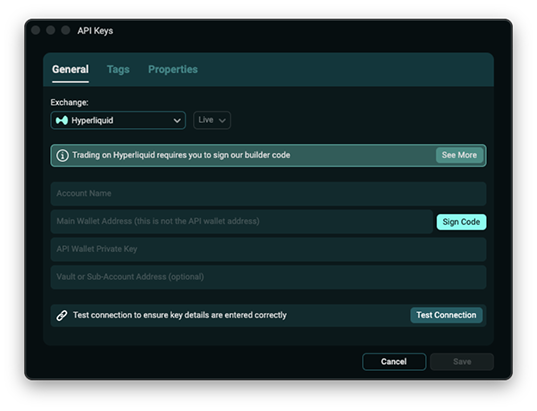
Sign Builder Code
- Builder code signing is required to authorize the agent wallet.
- After completing the required fields, click Sign Code.
- Your browser will open the Builder Code Signing page.
- Currently, MetaMask, OKX Wallet and Rabby Wallet are supported.
- Ensure that one of these wallet extensions is installed in your browser before continuing.
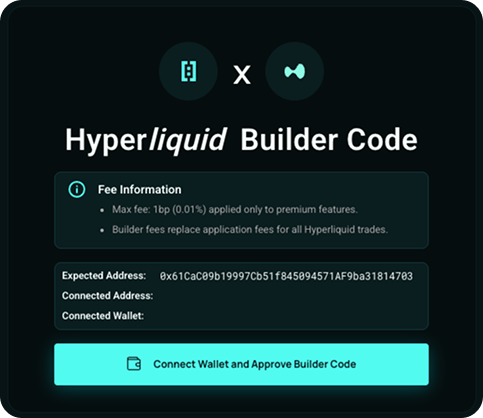
- Click Connect Wallet and Approve Builder Code.
A wallet selection modal will appear, listing the detected installed wallets.
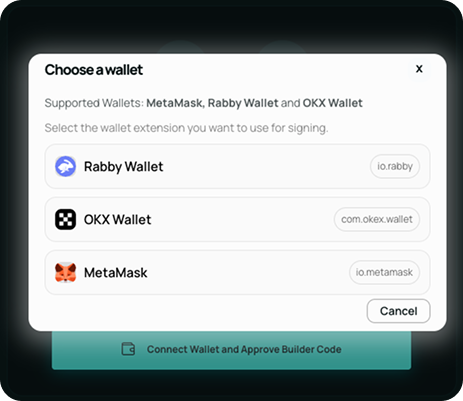
- Choose your wallet (MetaMask, OKX Wallet, or Rabby Wallet) and approve the connection.
Review and sign the request in your wallet.
Ensure the Expected address matches the Connected Address
Once signed, return to Sandwich to continue setup.
- Verify and Save
Click Test Connection to verify that the agent wallet is correctly authorized.
Once verified, click Save to store the key in your API Keys file.
Last updated:
January 14, 2026